Stage 4 - Working with Containers
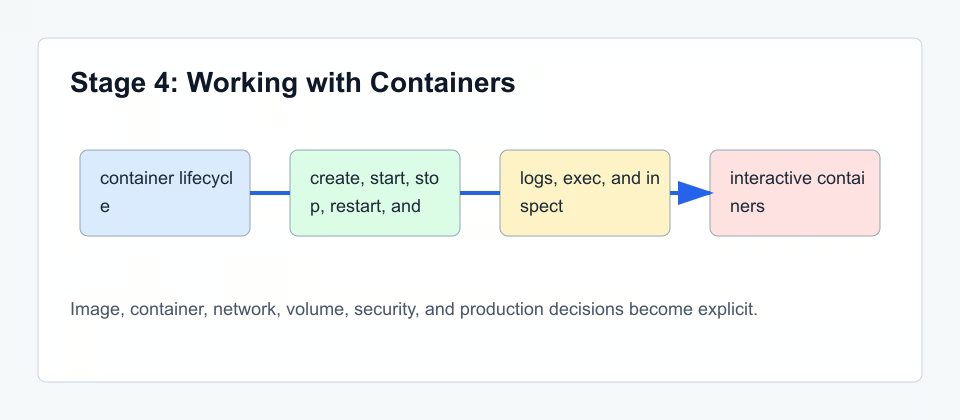
A container is easier to debug when you treat it as a process with a lifecycle. It is created, started, stopped, inspected, and eventually removed.
Lifecycle, not just commands
docker run hides several steps. Docker creates the container object, prepares the writable layer, connects networks, attaches mounts, and starts the configured process. If the main process exits, the container stops.
1. created
2. running
3. paused or stopped
4. restarted
5. removed
Debugging surfaces
Logs are the first debugging surface. Docker captures stdout and stderr, so the application should write useful logs there. docker exec is the second surface: it lets you see files, DNS, environment variables, and tools from inside the running container.
Limits and restart behavior
Resource limits turn Docker from a convenience tool into an operational tool. Memory limits prevent one container from consuming the host. CPU limits control scheduling. Restart policies decide what happens after crash or host restart.
The main process rule
A container lives as long as its main process lives. If that process exits successfully, the container stops. If it crashes, the container stops unless a restart policy tells Docker to start it again. This is different from a virtual machine, where many background services may keep running independently.
This rule explains a common beginner surprise: running a command like docker run ubuntu may exit immediately. The image is valid, but there is no long-running main process. If you need an interactive shell, you must run one explicitly with -it and a shell command.
For applications, this means the startup command is critical. A container should run the real foreground process, not start a background daemon and exit.
Inspect before changing
When something fails, collect evidence before changing the command. docker ps -a tells whether the container exists and its exit status. docker logs gives application output. docker inspect shows configuration that Docker actually applied.
Only after that should you use docker exec, and only if the container is still running. Exec is excellent for checking files, environment variables, DNS resolution, or installed tools. It is not a good way to fix production state manually because those changes disappear when the container is recreated.
What exists after you run a container
After docker run, the container object exists on the Docker host where the command was executed. If you ran the command on your laptop, the container is on your laptop. If you SSH into a VPS and run the command there, the container is on the VPS.
This distinction matters for debugging. docker ps only shows containers from the Docker host your CLI is connected to. If a container runs on a server, your local docker ps will not show it unless your CLI is configured to talk to that remote host.
Files written inside the container are not automatically files in your project directory. They live in the container writable layer unless you mount a volume or bind mount. Logs are collected by Docker from the container process output.
Commands to run and inspect
Run these commands in a terminal on the machine where Docker is installed. For local learning, that is your laptop terminal. For a VPS, first connect to the server with SSH, then run the commands there. Do not paste commands blindly: run one command, inspect what changed, then run the next one.
docker run -d --name web -p 8080:80 nginx:1.27
docker logs web
docker exec -it web sh
docker inspect web
docker stop web && docker rm web
Reference table
| Topic | What it means | Practical consequence |
|---|---|---|
| logs | Application output | First check when behavior is wrong |
| exec | Command inside running container | Use for diagnosis, not manual fixes |
| inspect | Low-level metadata | Find mounts, IPs, env, restart policy |
Debugging order
When a container behaves incorrectly, do not immediately rebuild the image. First check whether the container is running, then read logs, then inspect configuration, then enter the container only if you need its internal viewpoint.
This order prevents random fixes. It separates application failure, wrong runtime configuration, missing files, network mistakes, and resource problems.
Checkpoint
You are ready for the next topic when logs, exec, and inspect feel like three different tools instead of three interchangeable debugging commands.
Practical lifecycle exercise
Start a container in detached mode, stop it, and compare docker ps with docker ps -a. Then remove it and compare again. The point is to see that “not running” and “not existing” are different states. Many beginners lose time because they try to read logs from a removed container or remove a container that is only stopped.
Short takeaway
Main orientation: a container is an object around a process. The process can stop while the object remains; the object can be removed while a volume remains. These differences matter in every debugging session.