
Topic 2. JVM, JDK, JRE
This topic is not about memorizing abbreviations. It is about practical execution flow: install Java correctly, compile code, run code, and quickly diagnose environment issues.
Why JVM, JRE, and JDK are different layers
Java has three execution layers, each with a different responsibility:
JVMexecutes bytecode (.class) and controls runtime execution.JREprovides runtime components: JVM + standard libraries required to run applications.JDKprovides development tools: compiler, diagnostics, packaging, and debugging utilities.
Practical rule:
- If you write and compile Java, you need
JDK. - If you only run an already built app, you need runtime components.
- In modern Java setups, teams usually install
JDKeverywhere for consistency.
What the JVM does in practice
When you run java App, JVM:
- loads classes (
ClassLoader), - verifies bytecode,
- allocates and manages memory,
- interprets and JIT-optimizes hot code paths,
- bridges Java code with OS-level resources.
This is why the same bytecode can run across different operating systems.
What JRE provides
JRE answers: “What is required to run this app reliably at runtime?” It includes:
- JVM,
- core Java libraries (
java.lang,java.util,java.io, etc.), - runtime support components.
Without correct runtime components, even valid code may fail to launch.
What JDK provides
JDK is for development workflows. Typical tools:
javaccompiles.javainto.class,javalaunches the app,javadocgenerates API docs,jdb,jcmd,jstack,jmaphelp debug and diagnose runtime behavior.
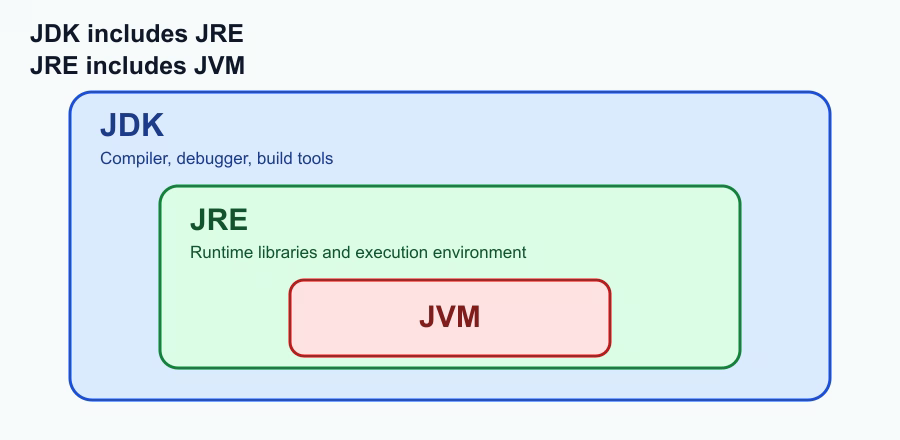
Layer relationship:
JDKincludes runtime components.- Runtime components include
JVM.
Minimal build-run cycle (beginner flow)
Step 1. Create the file
public class App {
    public static void main(String[] args) {
        System.out.println("Runtime via JVM");
    }
}
Step 2. Compile
javac App.java
Compiler from JDK produces App.class.
Step 3. Run
java App
JVM loads bytecode and executes main.
Step 4. Check environment if it fails
java -version
javac -version
echo $JAVA_HOME
which java
which javac
Common failure patterns
-
javaandjavacshow different major versions. Cause: mixed binaries inPATH. -
JAVA_HOMEpoints to an old installation. Cause: environment variables were not updated. -
App is built on Java 21 but runs on Java 17. Cause: inconsistent versions between local, CI, and production.
Team rule: lock one target Java version and enforce it across local dev, CI, and runtime.
Key takeaway
JDKis the developer toolkit.JVMexecutes application code.- Most Java startup/build issues are environment consistency problems, not business logic bugs.